
How to fill in missing emails and phone numbers in a spreadsheet
Upload a contact file, map your columns, check the preview and get emails and phones added next to your original rows.
You have a spreadsheet of names and companies, and half the email cells are empty. Bulk enrichment fills them in without changing your file's shape: every row and column you uploaded comes back, with new columns added on the right.
It's built for lists you already own, such as an event attendee sheet, a CRM export or a list from a partner.
Step 1: Check your file can be matched
Each row needs either a LinkedIn profile URL, or a first name, last name and company website together. A row with only a company name, or only an email address, can't be matched.
Files can be CSV, TSV, TXT or XLSX, up to 10 MB. If yours is bigger, split it. Prepare a messy export covers the common problems.
Step 2: Upload and map your columns
Open Enrich Contacts and drop in the file. ContactYard suggests which of your columns holds which detail, so you mostly need to confirm.
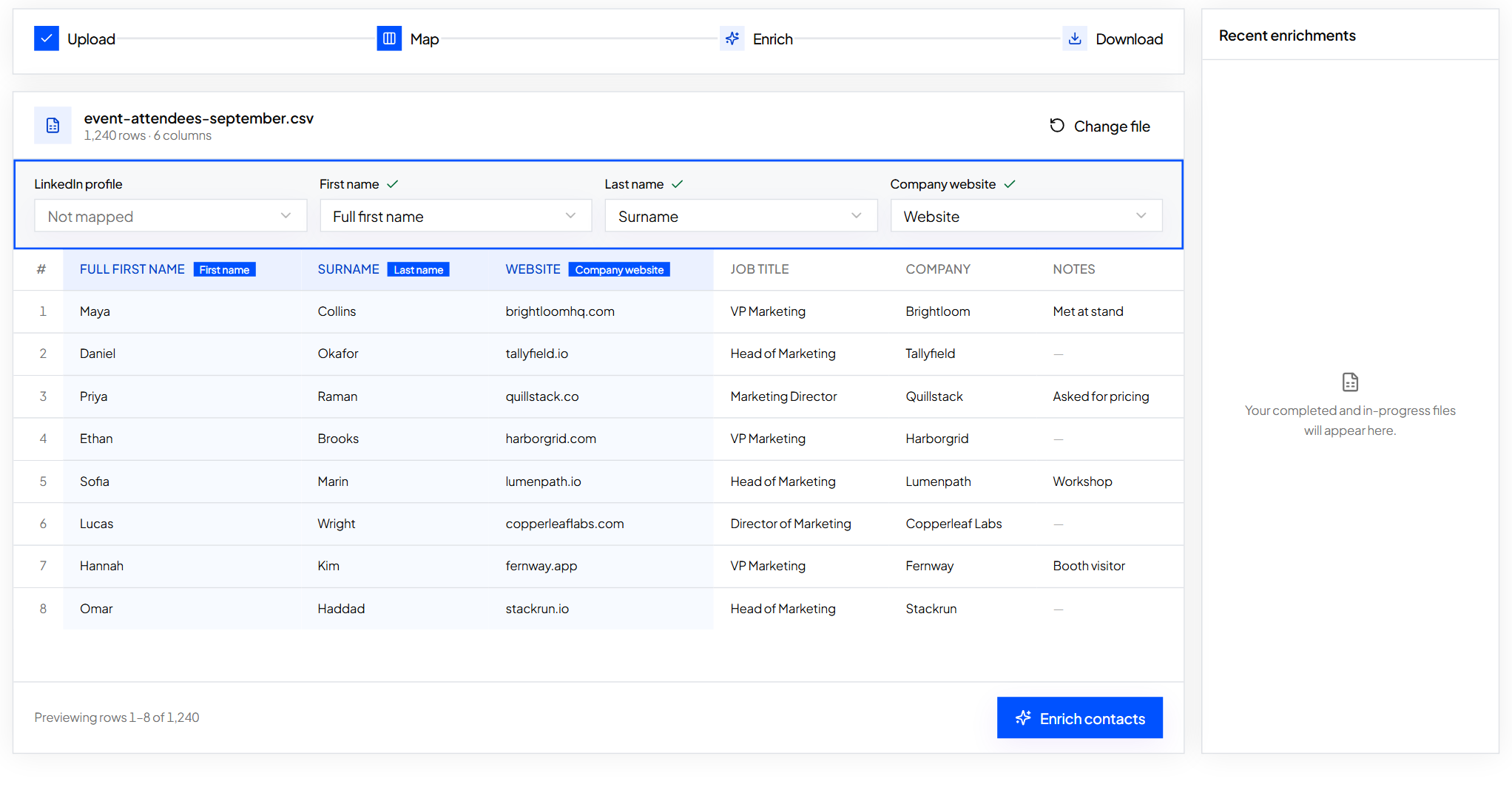
Below the mapping you'll see the first 20 rows with the matched columns first. If a name sits in the wrong column, fix the mapping now, before anything runs.
Step 3: Start the enrichment
Press Enrich contacts. The file runs in the background, so you can close the tab and come back, and you'll get an email when it's ready.
Credits work like they do everywhere else in ContactYard. Email and phone come together for one credit, and only contacts that are newly found use one:
- Not found rows cost nothing.
- Repeated rows get the same result and cost nothing extra.
- People you've already unlocked are reused, so you aren't charged again.
Tip: If your balance is too low to cover the file, ContactYard says so before it starts, with a link to get more credits.
Step 4: Check the result and download
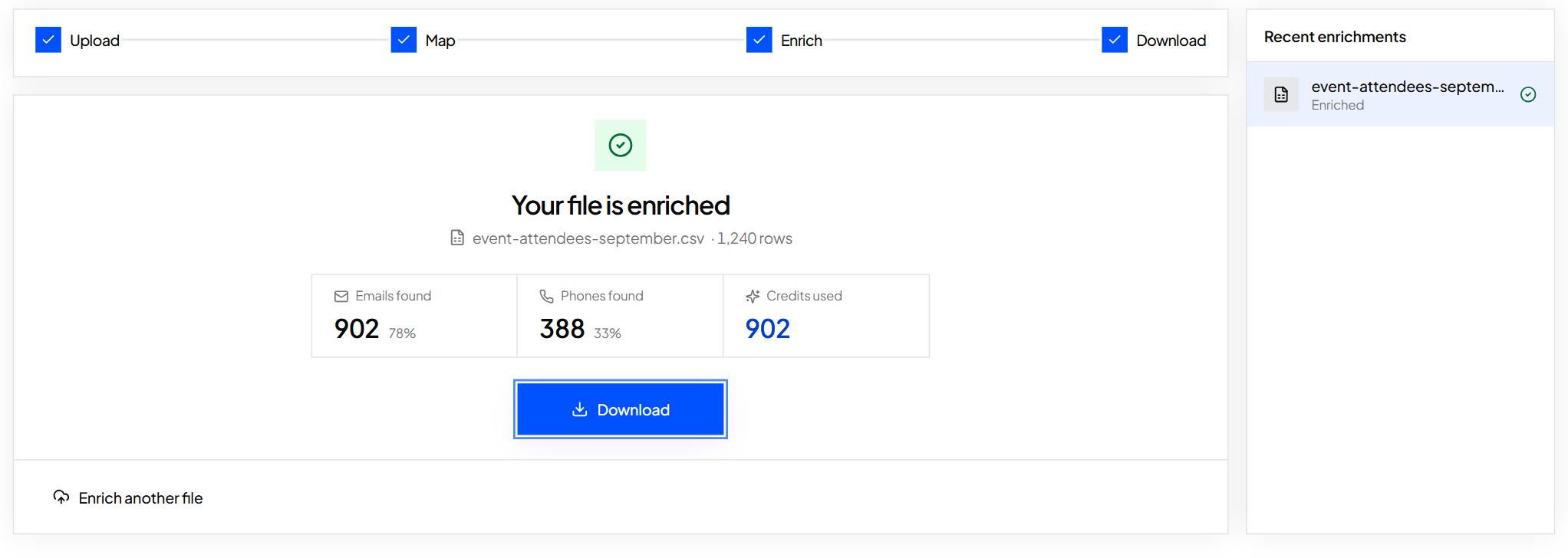
When the job finishes you'll see how many emails and phones were found and how many credits were used. Download the file to get every original column, plus the new ones.
Step 5: Filter by status, not by feel
Every row gets a cy_status value. Use it to decide what to do next.
| cy_status | Next step |
|---|---|
| email_and_phone_found | Ready for email and calls |
| email_found | Ready for email |
| phone_found | Call, or look for an email another way |
| not_found | Keep the original row. Nothing was charged |
| ineligible | Missing the detail needed to match. Fix the row and run again |
Also useful: cy_email_verification_date shows when each email was last checked, so you can decide how much to trust old rows.
What to do next
If the same people appear more than once in your file, remove duplicates first so your sheet stays tidy.
Keep reading
How to prepare a messy export for enrichment
Fix the handful of problems that stop rows from matching: missing names, merged cells, odd URLs and oversized files.
How to remove duplicates before you enrich a list
Find repeat contacts in a spreadsheet, choose which row to keep, and know what ContactYard does with duplicates it finds.
Required fields and formats for contact records
A field-by-field standard for contact records: what's required, what format it takes and a check you can run on any list.