
How to build a prospect list that gets replies
Six steps to go from a rough idea of your buyer to a short list of people worth emailing.
Most cold emails fail before anyone writes them, because they go to the wrong people. A short, accurate list gets more replies than a long, loose one.
This guide shows you how to build that list in ContactYard. It takes about 15 minutes.
Step 1: Write down who you want to reach
Before you touch any filters, describe your buyer in one sentence. It makes every later choice easier.
I want to reach [job titles] at [type of company] with [size] employees in [location].
For example: I want to reach marketing leaders at software companies with 21 to 250 employees in the United States.
Not sure who your buyer is? Start with what an ideal customer profile is.
Step 2: Add job titles, then remove the wrong ones
Open Job Title and type the titles your buyer uses. Add two to five common versions, such as Head of Marketing, VP Marketing and Marketing Director.
Then add the titles you don't want under Exclude job titles. Intern, Assistant and Coordinator remove people who can't say yes.
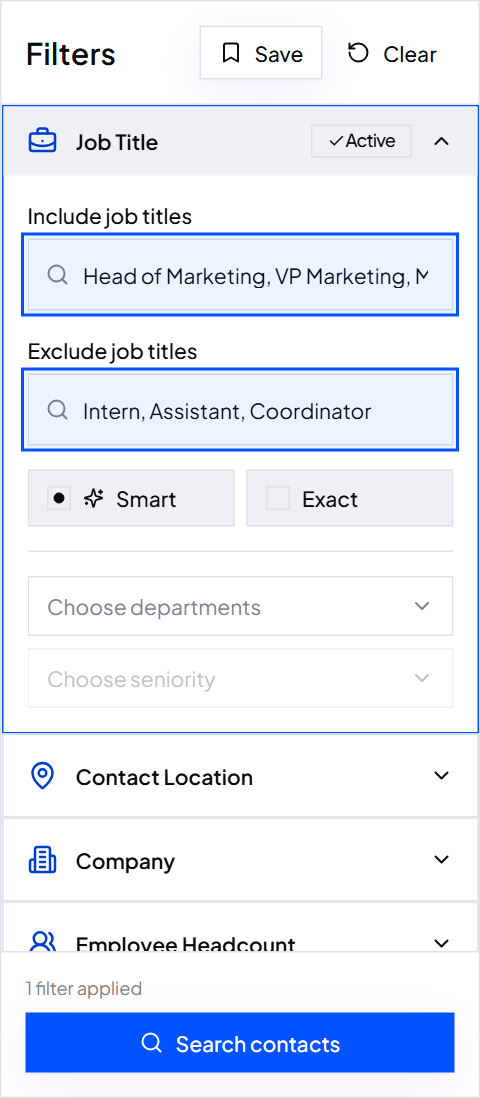
Tip: Leave matching on Smart. It also finds common short forms, so VP Marketing finds Vice President of Marketing too. Pick Exact only when you want the exact words you typed.
Step 3: Narrow down by company
Now describe the company. These filters do most of the work:
- Employee Headcount: pick the size bands that match your best customers.
- Company Location: choose the countries or cities where you can sell.
- Industry: pick a main industry, then a sub-industry if you need more focus.
- Keywords: add words a good-fit company would use to describe itself.
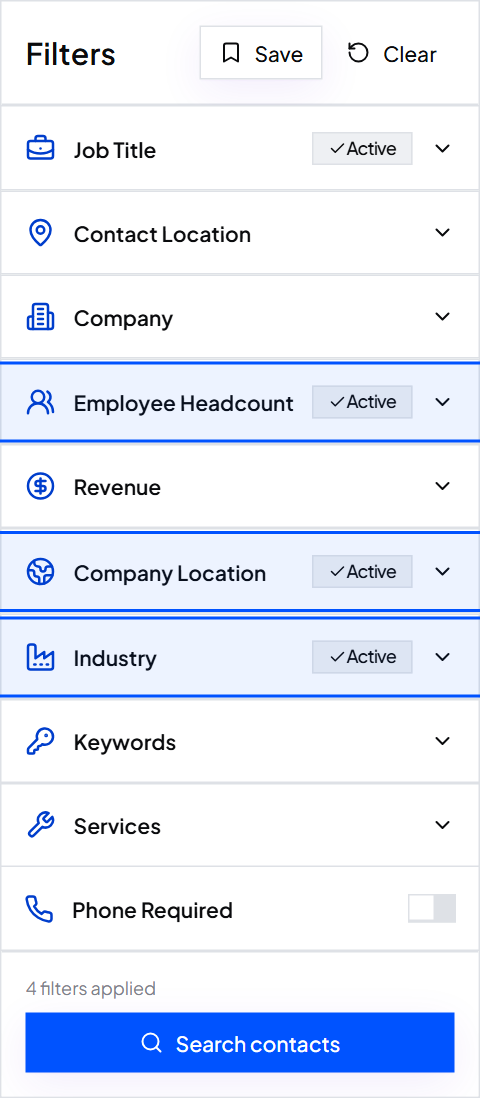
Tip: Start with three or four filters. Too many at once can hide good contacts, and you won't know which filter did it.
Step 4: Search and check the results
Click Search contacts. Then read the first page of results and ask three questions:
- Are the job titles right?
- Do the companies look like your current customers?
- Is the total a sensible size for your goal?
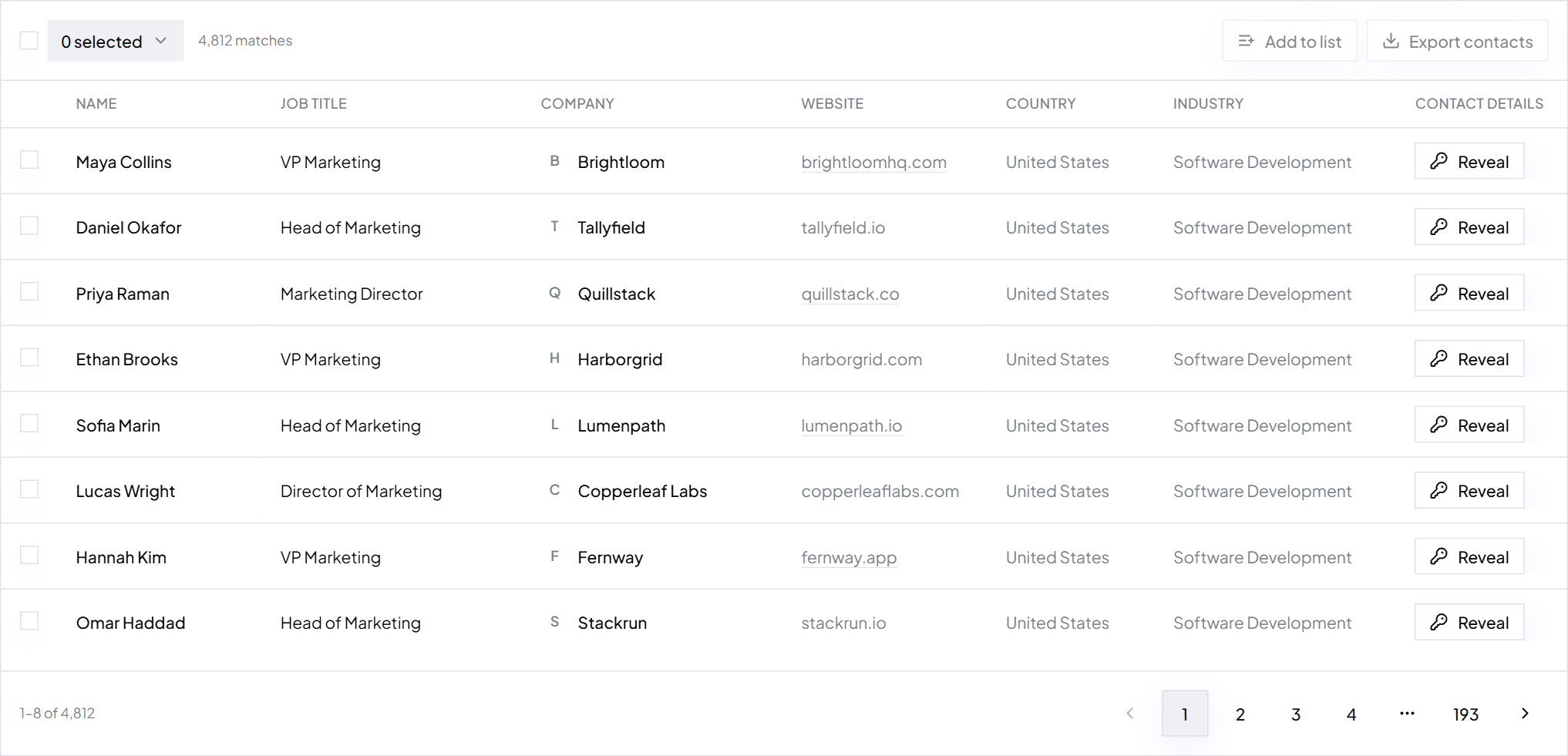
Seeing the wrong titles? Add them to the exclude list. Too few results? Remove one filter at a time and search again.
Step 5: Pick contacts and export
Tick the contacts you want, or use the selector at the top to pick a whole page. Click Export and confirm.
You get a CSV file that opens in any spreadsheet or email tool.
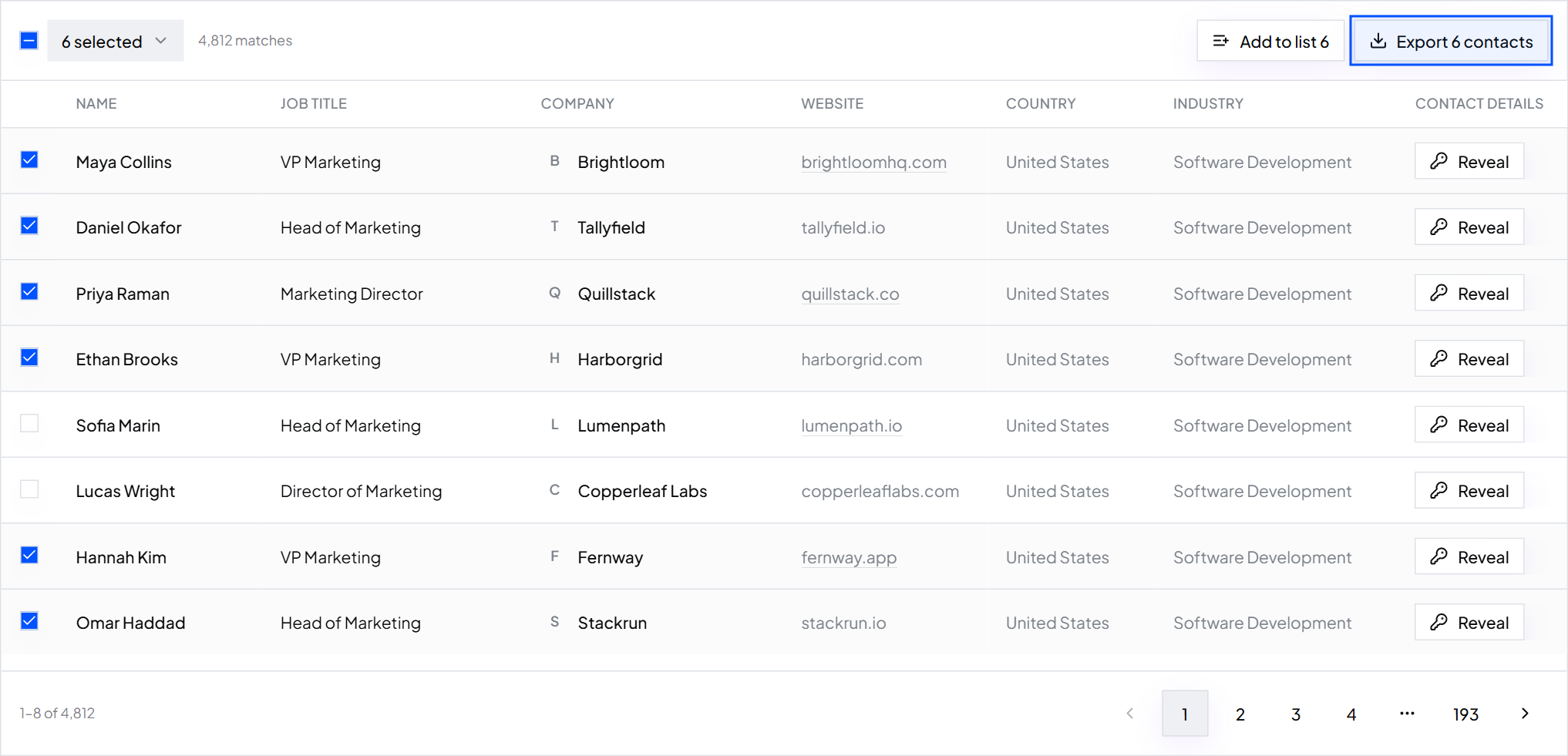
Tip: Start with 50 to 200 contacts. Email them, see who replies, then adjust your filters before you export more.
Step 6: Save the search
Click Save at the top of the filters. Give the search a clear name, like "US software marketing leaders".
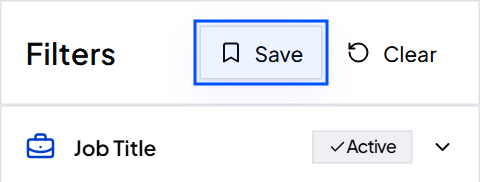
You can reopen it any time from Saved. That makes it easy to come back next month for the next batch.
Common mistakes
- Going too wide. 200 well-chosen contacts get more replies than 20,000 loose ones.
- Skipping exclusions. One junior title can fill half your list.
- Writing the email first. Choose the people, then write for them.
What to do next
Your list is ready. Next, make the first line of each email about the person's company. Learn how to personalize cold emails with AI.
Keep reading
What is an ideal customer profile? (With examples)
What an ICP is, what goes in it, and five examples you can adapt for your own business.
How to personalize cold emails with AI using company websites
Let AI read each prospect's website and write a short, specific first line. Includes prompts you can copy.