
The columns a send-ready list needs
A column-by-column checklist for the sheet you import into your email tool, with a header row you can copy.
Use this when your list is chosen and you're about to load it into an email tool. A tidy sheet saves you from sending an email that begins “Hi ,”.
The columns
ContactYard exports already include most of what you need. The last four you add yourself.
| Column | What goes in it | From |
|---|---|---|
| First name | Used in the greeting | ContactYard export |
| Last name | Helps you spot duplicates | ContactYard export |
| Job title | Check it matches your segment | ContactYard export |
| The address you'll send to | ContactYard export | |
| Company | Used in the email | ContactYard export |
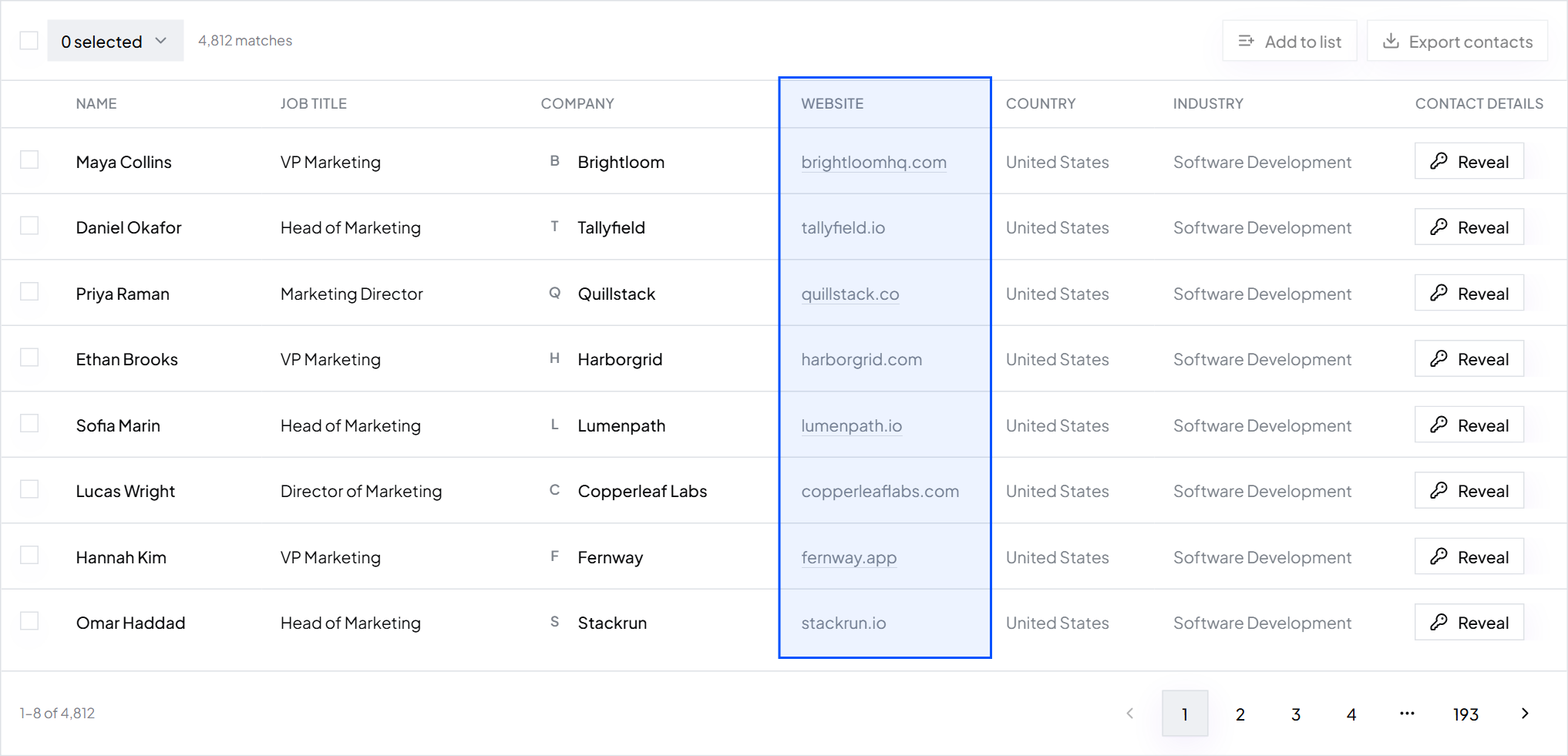
| Website | Needed for personalization | ContactYard export |
| segment | Which group they belong to | You add it |
| first_line | The personal opening sentence | You add it |
| search_name | The saved search it came from | You add it |
| status | Sent, replied, bounced, removed | You add it |
Copy the header row
Paste this into the first row of a new sheet and delete the columns you don't need.
first_name,last_name,job_title,email,company,website,segment,first_line,search_name,status
A filled-in row
One row, fictional
- first_name
- Maya
- job_title
- Head of Operations
- maya@fernway.example
- company
- Fernway
- website
- fernway.example
- segment
- Ops leads, 21 to 100 employees
- first_line
- I saw that Fernway helps clinics book patients by text.
- status
- not sent
Rules for the sheet
- One row per person, never merged cells.
- Plain text only. No colours that carry meaning.
- Header names match the variable names your tool expects.
- Delete columns you won't use, like phone, if you're only emailing.
- Keep a copy of the untouched export in a separate tab.
Tip: Before importing, send a test to yourself with the first three rows. A missing name or a stray comma shows up immediately.
What to do next
Need a first_line for each row? Write it with AI from the company website.
Keep reading
How to personalize cold emails with AI using company websites
Let AI read each prospect's website and write a short, specific first line. Includes prompts you can copy.
How to split one big list into segments that each get their own email
One email to a whole list sounds like it was written for nobody. Group people by shared situation and write once per group.
How to clean a list before you send: role inboxes, competitors and wrong titles
A short checklist to remove the contacts that waste sends or hurt your reputation, before you email anyone.