
How to check if an email address is valid: 5 ways
What a valid email address really means, what each verifier result tells you, five ways to check one address, how to check a whole list, and the bounce rate to aim for.
To check if an email address is valid, run it through an email verifier. It checks the spelling and format, confirms the domain is set up to receive email, and asks the mail server whether that mailbox exists, all without sending a message. If the result is valid, send. If it's invalid, delete it. If it's catch-all or unknown, treat the address as a guess.
This guide explains what each check does, what every result means, five ways to check a single address (some free, some in seconds), how to check a whole list, and the bounce rate to aim for. It ends with the approach that saves the most time: getting emails that are verified before they reach you, so there's nothing left to check.
What a valid email address means
"Valid" is not one test. An address has to pass several, in order, and it can fail at any of them. A good verifier runs all of these.
| Check | What it asks | Fails when |
|---|---|---|
| Syntax | Is the address written correctly? | Missing @, spaces, two dots in a row, a typo like gmial.com |
| Domain | Does the part after the @ exist? | The domain was never registered or has expired |
| MX records | Has the domain told the internet where to deliver its email? | No mail server is listed, so nothing can be delivered |
| Mailbox | Does the mail server accept mail for this exact address? | The server says the user doesn't exist |
| Disposable | Is it a throwaway inbox that expires? | The domain belongs to a temporary inbox service |
| Role-based | Is it a shared inbox rather than a person? | It starts with info@, sales@, support@, admin@ and similar |
The first four decide whether an email can be delivered at all. The last two decide whether it's worth sending to. A disposable address will stop working soon. A role-based address is real, but nobody in particular owns it, which makes it a poor target for a one-to-one sales email.
Catch-all domains: valid but unconfirmed
Some companies set their mail server to accept email for any address at the domain, real or not. These are called catch-all or accept-all domains. A verifier asks about jane.doe@ and the server says yes. It also says yes to qwerty123@. So nobody outside the company can confirm the person exists, and the result is "unknown" no matter which tool you use.
Tip: Validation vs verification. People use the words loosely. Strictly, email validation checks that an address is written correctly. Email verification goes further and checks that the domain and mailbox can actually receive mail. An address can pass validation and still bounce.
Email verification results, and what to do with each
Every verifier uses slightly different labels, but they all map to these six.
| Result | What it means | What to do |
|---|---|---|
| Valid | The mail server confirmed this mailbox exists and accepts mail | Send |
| Invalid | Bad syntax, no such domain, no mail server, or the server rejected the mailbox | Delete it and never send to it |
| Catch-all or risky | The domain accepts every address, so this one can't be confirmed | Keep it out of your main send, or test a small batch separately |
| Unknown | The server didn't answer, timed out or blocked the check | Re-check in a day; if still unknown, treat it as risky |
| Disposable | A temporary inbox that will stop working | Delete it for outreach |
| Role | A shared inbox like info@ or sales@ | Remove it from cold outreach; keep it only if you want to be routed |
5 ways to check if one email address is valid
Use these when you have a single address you care about, such as a decision maker you found by hand. They go from the fastest look to the most thorough.
Step 1: Look at the syntax
Read the address slowly. Many invalid addresses in a spreadsheet are simple typing mistakes, and you can catch them by eye.
- Exactly one @, with something on both sides.
- No spaces, commas or brackets anywhere.
- No dot at the start or end of the name part, and no two dots in a row.
- A real ending after the last dot, such as .com, .io or .co.uk.
- Common typos in the domain: gmial.com, gamil.com, hotmial.com, outlok.com, or .con instead of .com.
Spot the problem
- jane.doe@example
- No ending after the domain. Invalid.
- jane..doe@example.com
- Two dots in a row. Invalid.
- jane doe@example.com
- A space in the name. Invalid.
- jane.doe@example.con
- Typo in the ending. Will bounce.
- jane.doe@example.com
- Correct syntax. Still needs the other checks.
Step 2: Check the domain's MX records
MX records are DNS entries that tell the internet which server receives email for a domain. If a domain has none, mail to it will almost always fail. You can check in a few seconds from your own computer. Open a terminal (Command Prompt on Windows, Terminal on a Mac) and run one of these, swapping in the domain you want to check.
nslookup -type=mx northwind.com dig northwind.com mx +short
If you see one or more mail server names, the domain can receive email. If you see nothing, or an error that the domain doesn't exist, every address at that domain is invalid. Free web tools called MX lookups show the same thing if you'd rather not use a terminal.
Tip: An MX check tells you about the domain, not the person. A company with perfect MX records will still bounce an address for someone who left last month.
Step 3: Run it through an email verifier
An email verifier does everything above and adds the mailbox check. It connects to the domain's mail server, starts the normal conversation that comes before any delivery, names the address as a recipient and reads the server's answer. Then it ends the conversation before a message is sent. The person never receives anything.
Paste the address into the verifier and read the result against the table above. Most standalone verifiers give a small number of free checks, then charge for each address after that.
Free email verification: what to expect
- Free checks are capped. Expect a handful of single checks a day, or a small one-time allowance, before you're asked to pay.
- Catch-all stays catch-all. No tool, free or paid, can confirm a mailbox on a domain that accepts everything.
- Some servers block checks. Large providers and strict corporate servers sometimes refuse to answer, which gives you "unknown".
Step 4: Search for the address
Put the exact address in quotes and search Google. If it shows up on the company's own site, in a press release, in a conference programme or in an author bio, a real person published it. That's good evidence, especially for catch-all domains where a verifier can't help.
"jane.doe@example.com" site:example.com "jane.doe" "@example.com" "Jane Doe"
Also check that the person still works there. Open their LinkedIn profile or the company's team page. Addresses for people who have since moved on are a common cause of bounces. If you're building the address from a company's email format, how to find someone's email walks through it with a worked example.
Step 5: Send your real message and watch for a bounce
For one important address, you can simply send the email you meant to send and watch your inbox. A hard bounce usually comes back within minutes, with a message saying the address doesn't exist. No bounce after a day is a good sign, though not proof: catch-all domains accept first and sometimes bounce later.
Only do this one address at a time, and only with a real, relevant message. Sending to a list to see what bounces is exactly what damages your sender reputation.
How to check a whole email list
The single-address methods don't scale past a few rows. For a list, clean it in a spreadsheet first, then verify it in bulk.
- Remove duplicates. Sort by the email column and delete repeats, so you don't pay to check the same address twice.
- Fix or delete obvious syntax errors. Filter for cells without an @, with spaces, or ending in .con.
- Upload the file to a bulk verifier. It returns each row with a result: valid, invalid, catch-all, unknown, disposable or role.
- Delete invalid and disposable rows. They will only ever bounce or vanish.
- Remove role inboxes from a cold outreach list. Keep them only if your message is meant for whoever reads the shared box.
- Split out catch-all and unknown rows. Send them later, in a small separate batch, and stop if they bounce.
- Add a status column and mark every bounce from now on. That column becomes your do-not-send list.
The rest of a pre-send clean-up, like removing competitors, customers and wrong job titles, is in clean a list before you send.
If the list is old, refresh it instead
Verifying an old list tells you which emails are dead. It doesn't tell you where those people went. People change jobs all the time, so a list that was clean a year ago can be full of former employees (how fast contact data goes stale explains how quickly that happens).
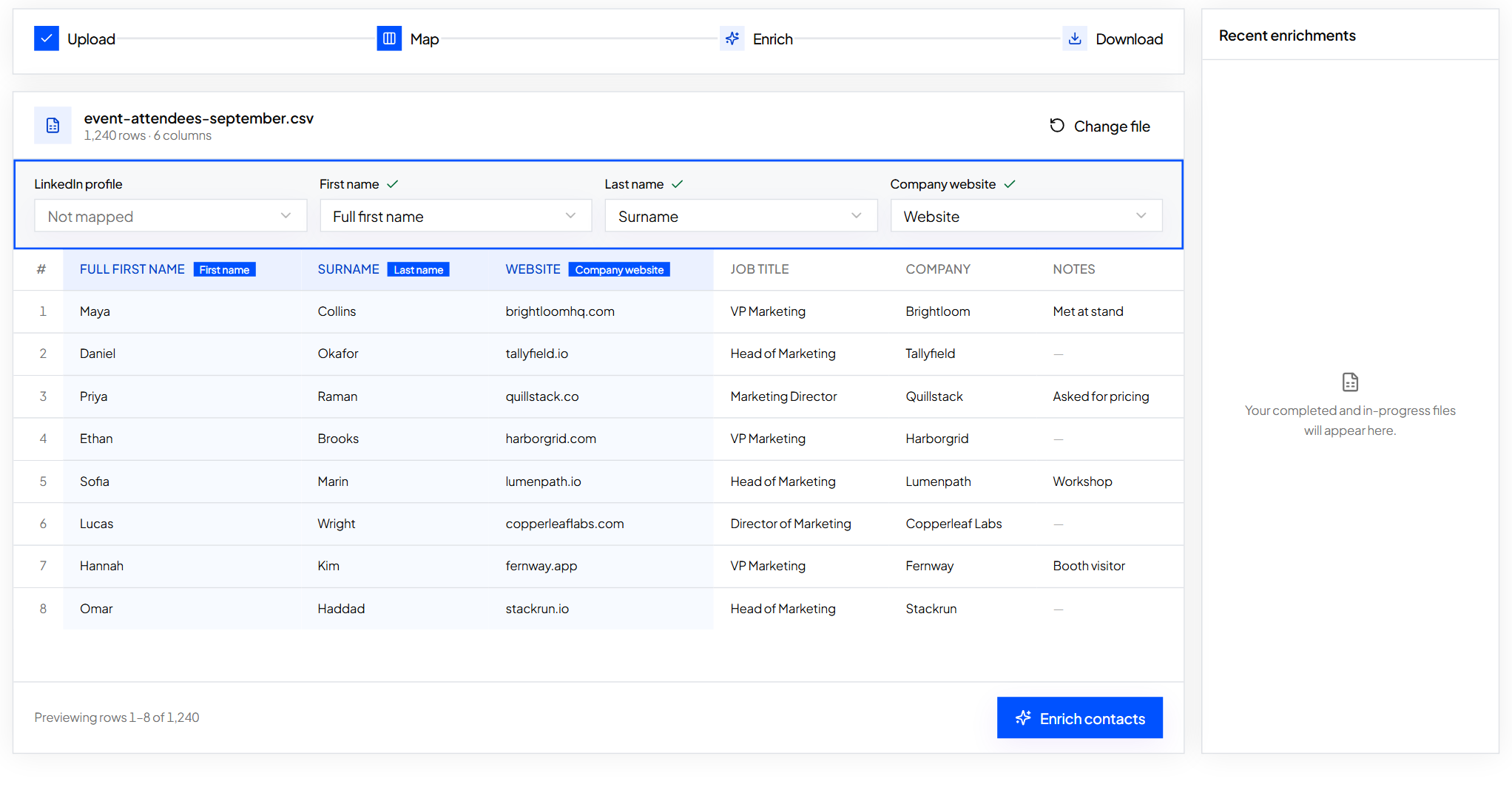
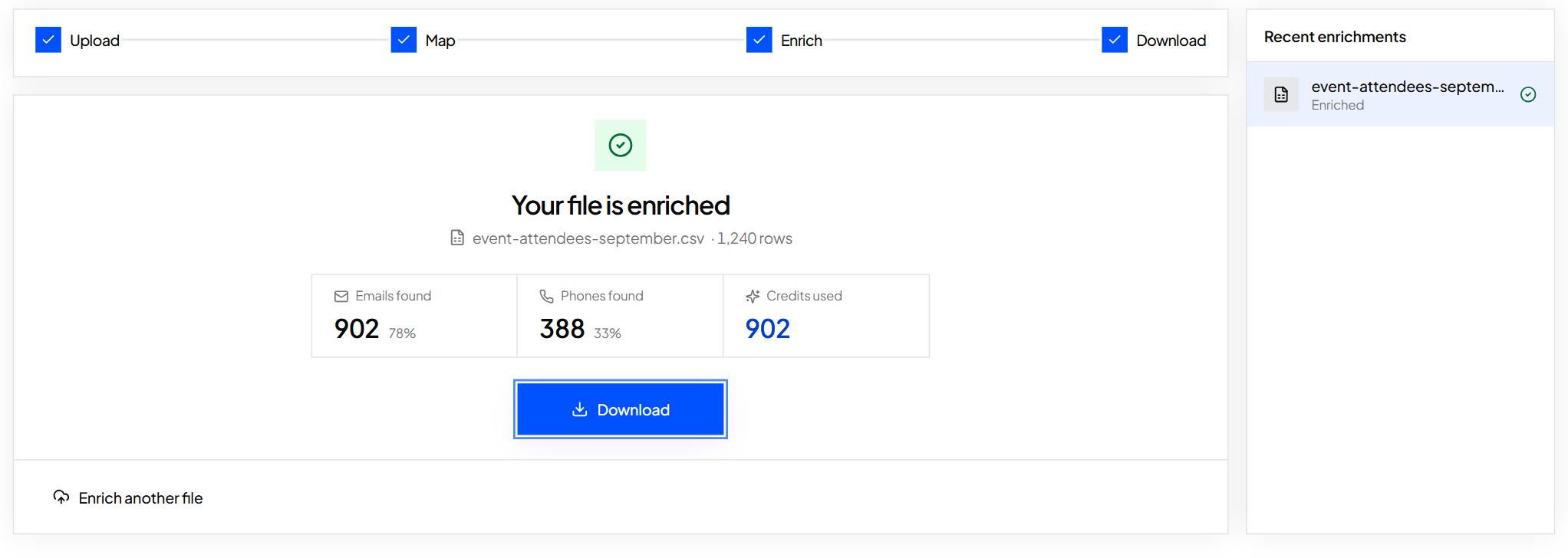
If your list has the person's LinkedIn profile URL, or their name and company domain, upload it to ContactYard Enrich Contacts. Map the columns, run it, and download the file with fresh, verified work emails and mobiles filled in. You get current addresses instead of a pile of deletions. Step by step: fill missing emails and phones in a spreadsheet.
What a good bounce rate is
A bounce is an email that couldn't be delivered. There are two kinds, and only one counts against your list.
| Type | What happened | What to do |
|---|---|---|
| Hard bounce | Permanent: the address or domain doesn't exist, or the server refuses it | Remove the address at once and never send to it again |
| Soft bounce | Temporary: the mailbox is full, the server is down or the message was too large | Your sending tool usually retries; remove the address if it keeps soft bouncing |
Aim to keep hard bounces under about 2% of the emails you send. That's a widely used rule of thumb. Many cold email senders treat 3% as the point to stop and check the list, because mailbox providers read a high bounce rate as a sign you don't know who you're mailing, and more of your good emails start landing in spam.
If you're already over that line, the five usual causes and how to tell them apart are in why your bounce rate is over 3%.
The best way to check emails: never need to
Every method above is a repair job on data that should have been right in the first place. The faster route is to start with emails that are already verified.
That's how ContactYard works. Every work email is verified before you get it, and the verification is included in the same single credit as the email and the mobile number when available. There's no separate verifier subscription, no second upload and no second bill. Data is refreshed every 30 days, so you aren't checking addresses that went stale last quarter.
| ContactYard | Typical contact data tool | |
|---|---|---|
| Work email | Included | 1 credit |
| Mobile number | Included when available | 2 to 10 more credits |
| Email verification | Included, done before delivery | 1 more credit, or a separate verifier bill |
| Total per contact | 1 credit | 4 to 12 credits |
On the Scale plan that works out to about $3.30 per 1,000 verified contacts. Build a list by job title, company domain, headcount, industry and location, export it, and send. If you want to see the quality for yourself before you commit, test a contact data provider shows a fair way to compare. Or just start free and check a sample.
FAQ
- How do I verify if an email address is valid?
- Run it through an email verifier. It checks the syntax, confirms the domain has MX records, and asks the mail server whether the mailbox exists without sending anything. Valid means send, invalid means delete, and catch-all or unknown means treat it as a guess. You can also look up MX records yourself, search for the exact address on Google, and confirm the person still works at the company.
- Is there a free email validity checker?
- Yes. Most email verifiers give a small number of free checks before they charge per address, and MX lookup tools are free. For outreach lists, ContactYard skips the step: every work email is verified before you get it, and the verification is included in the one credit you pay for the contact.
- Can you check if an email address is valid without sending an email?
- Yes. A verifier connects to the domain's mail server, names the address as a recipient and reads the answer, then ends the conversation before any message is sent. The person receives nothing. The one exception is catch-all domains, which say yes to every address, so no check can confirm them.
- What does catch-all mean in email verification?
- A catch-all, or accept-all, domain accepts mail for any address, real or made up. A verifier can't tell whether the person exists, so the result is risky or unknown. Send to these addresses in a small separate batch and stop if they bounce.
- What is a verified email address?
- In outreach, it's an address a verifier has confirmed can receive mail: correct syntax, a working domain and a mailbox the server accepts. On websites and apps, a verified email address means the owner clicked a confirmation link to prove the inbox is theirs.
- How do I check a list of emails?
- Remove duplicates and obvious typos, upload the file to a bulk email verifier, then delete invalid and disposable rows, drop role inboxes from cold outreach, and send catch-all rows separately. If the list is old and has names with company domains or LinkedIn URLs, upload it to ContactYard Enrich Contacts to get fresh verified emails instead.
Keep reading
Why your bounce rate is over 3% and how to fix the list
The five usual causes of bounced cold emails, how to tell which one you have, and a safe routine for new lists.
How to clean a list before you send: role inboxes, competitors and wrong titles
A short checklist to remove the contacts that waste sends or hurt your reputation, before you email anyone.
How to fill in missing emails and phone numbers in a spreadsheet
Upload a contact file, map your columns, check the preview and get emails and phones added next to your original rows.