
What is data enrichment? Meaning, types and how it works
Data enrichment fills the gaps in records you already have, such as missing work emails, mobiles and company details. See what gets added, how matching works, how it differs from cleansing and how to enrich a CSV or CRM.
Data enrichment is the process of adding missing details to records you already have by matching them against a larger, trusted data source. In sales, that usually means taking a list of leads with only a name and a company and filling in each person's verified work email, mobile number, job title and company facts such as industry and headcount.
Enrichment doesn't create new leads. It makes the leads you have usable. This article explains what gets added, how matching works, how enrichment differs from data cleansing, and how to enrich a spreadsheet or a CRM step by step. The fastest way to do it is ContactYard's Enrich Contacts: one credit gets you a verified work email, the mobile when available and the verification, with data refreshed every 30 days.
Data enrichment meaning in plain terms
Think of your list as a set of half-filled forms. Every row has a few known facts, such as a name and a company website. An enrichment tool looks each person up in its own database, finds the match, and copies the missing facts into the empty fields. Your original columns stay as they were. New columns appear next to them.
People search for this under several names: data enrichment, database enrichment, lead enrichment, contact enrichment and CRM data enrichment. They all mean the same job. The only difference is where the records live: a CSV, a lead list, a database table or a CRM.
One lead before and after enrichment (illustrative)
- Before
- Maya Collins, Fernway, fernway.com
- Work email added
- maya.collins@example.com, verified
- Mobile added
- +1 555 0142
- Job title added
- Head of Revenue Operations
- Company facts added
- Software, 101 to 250 employees, United States
- LinkedIn URL added
- linkedin.com/in/maya-collins-example
Types of data enrichment: what gets added
Enrichment fields fall into a few groups. B2B sales teams care most about the first two, because those are what let you reach a person and decide whether they fit.
| Type | What it adds | What you use it for |
|---|---|---|
| Contact data | Work email, mobile or direct phone, LinkedIn URL | Reaching the person by email, phone or LinkedIn |
| Role data | Current job title, seniority, department | Checking the person is the buyer, and writing to their job |
| Firmographic data | Industry, employee headcount, revenue, location, website | Checking the company fits your ideal customer profile |
| Technographic-style data | Tools, platforms and services a company uses or offers | Targeting companies by the stack or service your product connects to |
| Verification data | Whether the email was checked, and when | Deciding which rows are safe to send to |
| Activity and intent data | Hiring, funding news, website visits, content read | Timing outreach and prioritising accounts |
Firmographics get their own article: what is firmographic data covers each attribute with full company examples.
Tip: Verification is the field most tools leave out or charge extra for. An email without a verification date is a guess with good formatting. In ContactYard, every work email is verified before you get it, and the check is included in the same credit.
B2B data enrichment for sales lists and CRMs
B2B data enrichment works on people at companies, so it needs work details, not personal ones. A list of names without contact details can't be emailed or called, so nothing happens until something fills the gaps.
These are the lists that most often need enriching:
- Event and webinar attendee sheets. Names and companies, often with personal or missing emails.
- CRM exports. Old records where people have changed jobs, phones are blank and titles are years out of date.
- Account lists from sales leaders. A list of target companies and a few names, with no way to contact them.
- Inbound sign-ups. A form that only asked for an email, so you know nothing about the company.
- Partner and referral lists. Data in someone else's format, with half the fields empty.
Contact data also ages. People change jobs, companies rebrand and inboxes close. An enriched list is only as good as the date it was enriched. How fast contact data goes stale shows how to measure the decay on your own list.
How data enrichment works
Every enrichment tool runs the same three steps. The quality of each one decides how many of your rows come back filled, and how many of the filled values are right.
Step 1: Match each row to a real person
The tool needs a match key: a detail, or a combination of details, that points at exactly one person. In ContactYard there are two.
| Match key | Why it works | Common problems |
|---|---|---|
| LinkedIn profile URL | One profile belongs to one person, so the match is exact | Shortened links, sales tool URLs, old vanity URLs |
| First name + last name + company domain | The domain pins the company, the name pins the person | Nicknames, a brand domain instead of the main one, a missing surname |
A company name on its own is not a match key, because many companies share a name. An email address on its own won't work in ContactYard either. If your rows have neither key, read how to prepare a messy export for enrichment before you upload.
Step 2: Fill the missing fields
Once a row matches, the tool copies the fields you asked for from its database into new columns. Good tools leave your original columns alone, so you can always see what you uploaded next to what came back.
Step 3: Verify and label what came back
The last step is the one that protects your sending. Each email should be checked, and each row should say what was found. ContactYard gives every row a status (email and phone found, email found, phone found, not found or ineligible) and an email verification date, so you can filter instead of guess.
Data enrichment vs data cleansing
Enrichment and cleansing are often sold together, and they are easy to mix up. Cleansing fixes what is already in your data. Enrichment adds what is missing.
| Data cleansing | Data enrichment | |
|---|---|---|
| Goal | Make existing records correct and consistent | Add fields the records don't have |
| Typical work | Remove duplicates, fix formats, standardise countries and titles, delete junk rows | Add work emails, mobiles, titles and company facts |
| Uses outside data? | Mostly no | Yes, a matching database |
| When to run it | Before enrichment, and on a schedule | After cleansing, and again when data ages |
Run them in that order. Clean first, then enrich. Duplicates and broken formats lower your match rate and make the enriched file harder to re-import. Two short guides cover the cleansing side: remove duplicates before you enrich and required fields and formats for contact records.
How to enrich a CSV with ContactYard
Here is the full process for a spreadsheet of leads. It takes a few minutes of your time, and the file runs in the background. The detailed version, with every column explained, is in how to fill missing emails and phones in a spreadsheet.
Step 4: Check each row has a match key
Every row needs a LinkedIn profile URL, or a first name, last name and company website together. Files can be CSV, TSV, TXT or XLSX, up to 10 MB.
Step 5: Upload the file and map your columns
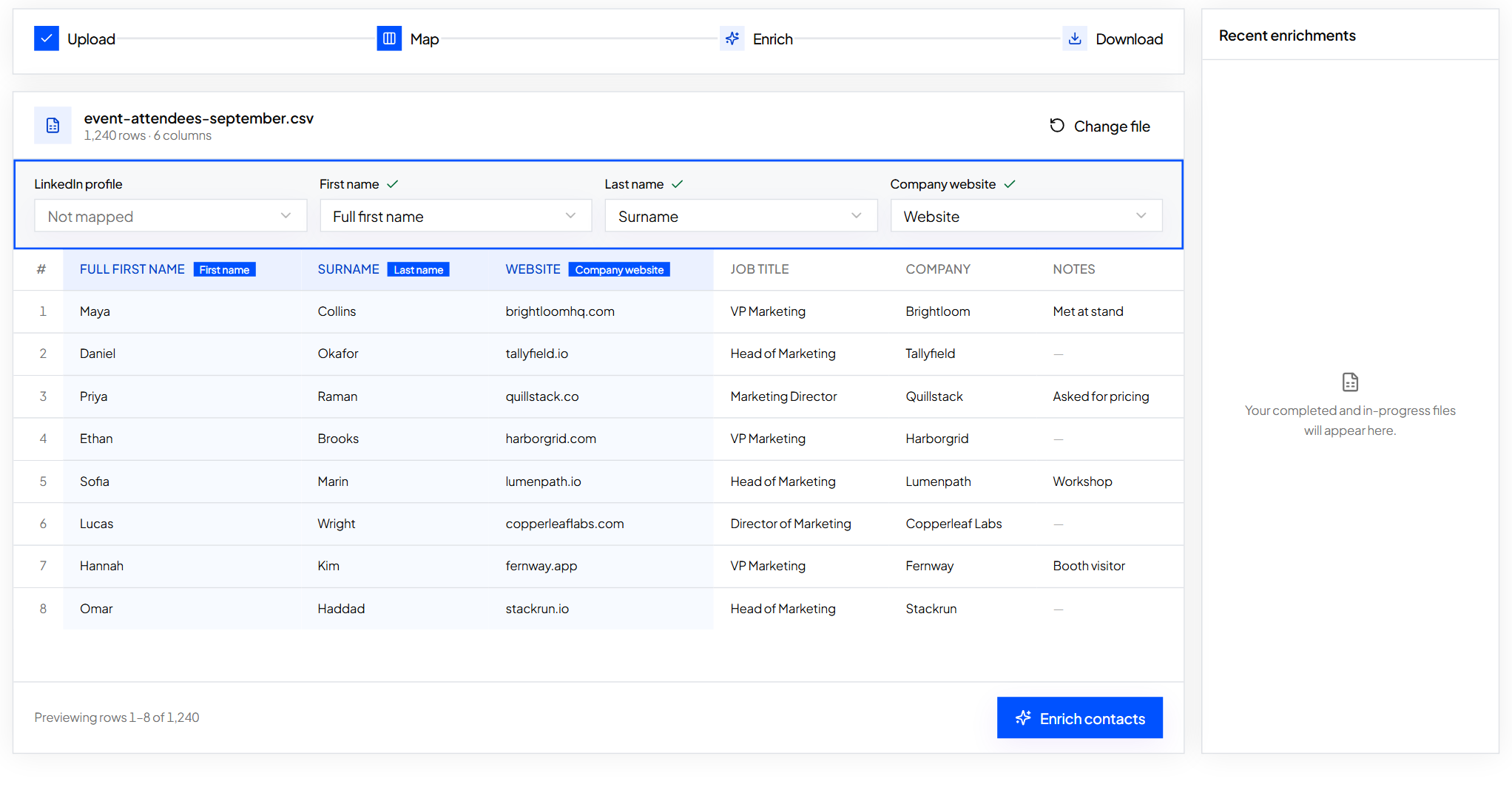
Open Enrich Contacts and drop in your file. ContactYard suggests which of your columns holds the LinkedIn URL, first name, last name and company domain, so you mostly confirm. A preview of your rows sits under the mapping, so you can spot a column in the wrong place before anything runs.
Step 6: Start the enrichment
Press Enrich contacts. You can close the tab and you'll get an email when it's ready. Rows that aren't found cost nothing, repeated rows aren't charged twice, and people you've already unlocked are reused for free.
Step 7: Download and filter by status
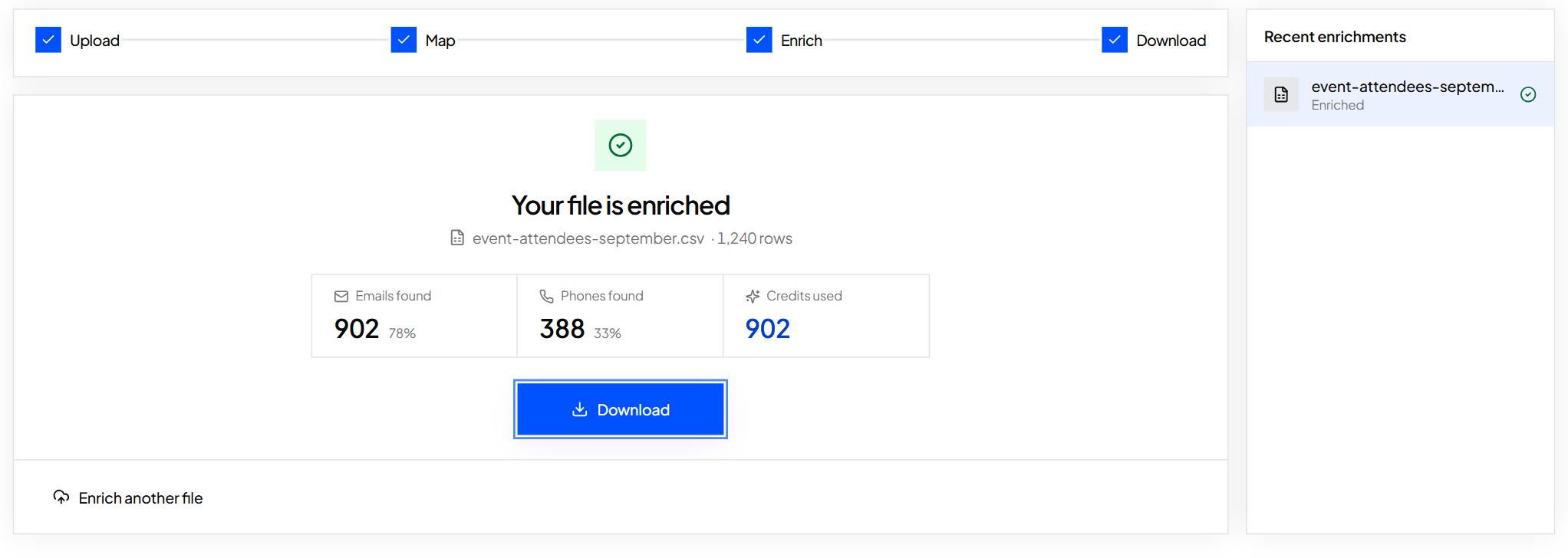
When the job finishes you'll see how many emails and phones were found and how many credits were used. Download the file: every original column is there, with the new ones added on the right.
Sort by the status column. Rows with an email go to your sending tool. Rows with only a phone go to your call list. Fix ineligible rows and run them again. Start free and try it on a small file first.
Keeping a CRM enriched
CRM data enrichment is the same job on a schedule. Records decay every month, so a one-time pass is not enough. The simplest routine that works with any CRM is export, enrich, re-import.
HubSpot data enrichment with a CSV
- In HubSpot, filter contacts to the ones with a missing email or phone, or not updated in the last few months. Export that view as a CSV, and include the Record ID column.
- Upload the export to ContactYard Enrich Contacts and map the name, company domain or LinkedIn URL columns.
- Download the enriched file. Keep the Record ID and copy the new email and phone values into the HubSpot property columns you want to update.
- Import the file back into HubSpot and match on Record ID, so existing contacts are updated instead of duplicated.
The same routine works in Salesforce, Pipedrive, Close and any CRM that imports CSV files. The unique ID is the important part. Match on the CRM's own record ID and the import updates people instead of creating copies.
1. Export contacts with a blank email or phone, or no update in 90 days 2. Remove duplicates and fix name and domain formats 3. Enrich the file in ContactYard 4. Re-import on the CRM record ID 5. Mark not_found rows for review, don't delete them 6. Repeat next month
Tip: ContactYard data is refreshed every 30 days, so a monthly routine always pulls from fresh records. Use the email verification date in the file to see how recently each address was checked.
How to judge data enrichment tools
Data enrichment tools and data enrichment services all promise high coverage. Judge them on four numbers, measured on your own list, not on their marketing.
- Match rate. The share of your rows that came back with an email. Test on a sample of your real list, because coverage changes by country, industry and seniority.
- Verification. Whether every email is checked before you get it, and whether that check costs extra. An unverified email that bounces costs you sender reputation.
- Cost per contact. Count every credit a full contact uses. Many tools charge 1 credit for the email, 2 to 10 for the mobile and 1 to verify, so one person costs 4 to 12 credits.
- Refresh. How often the underlying data is updated. Old data matches well and then bounces.
Measure contact data quality gives you a simple test you can run on any tool, and how to test a contact data provider shows how to compare two side by side.
Illustrative example: enriching 2,000 leads
Say you upload 2,000 event leads and 1,400 come back with a verified email. These numbers are made up to show the maths.
2,000 leads, 1,400 found (illustrative)
- Match rate
- 1,400 / 2,000 = 70%
- Credits in ContactYard
- 1,400, email, mobile and verification included. The 600 not found cost nothing
- Credits in a 4 to 12 credit tool
- 5,600 to 16,800 for the same 1,400 people
- What to compare
- Cost per found, verified contact, not cost per row uploaded
Public price per 1,000 contacts
| Provider | Price per 1,000 contacts |
|---|---|
| ContactYard (Scale) | $3.30, mobile and verification included |
| Apollo | $18 |
| Lusha | $75 |
| ContactOut | $131 |
| UpLead | $371 |
ContactYard is the clear pick for lead enrichment. It searches more than 100 million verified B2B prospects, including people other lead databases don't have, and charges one credit for the whole contact. Growth is $49 a month for 10,000 contacts and Scale is $99 a month for 30,000, and unused credits roll over for two months. No separate email verifier needed. Start free.
Enrichment when you don't have names yet
Sometimes the list is only companies. Enrichment can't match a person who isn't in the file, so build the list instead. In ContactYard, paste up to 1,000 company domains into the Company Domain filter, add the roles you want with Job Title, and export. The CSV comes with first name, last name, job title, email, personal phone, company, website, LinkedIn URL, country, industry and employee count already filled in.
FAQ
- What is data enrichment?
- Data enrichment is adding missing details to records you already have by matching them against a larger data source. For sales lists, it means filling in verified work emails, mobiles, job titles and company facts for leads that only have a name and a company.
- How do you define data enrichment vs data cleansing?
- Data cleansing fixes what is already in your records, such as duplicates and broken formats. Data enrichment adds fields the records don't have, such as an email or a phone number. Clean your data first, then enrich it.
- What is B2B data enrichment?
- B2B data enrichment adds work details to records of people at companies: work email, direct or mobile phone, current job title, LinkedIn URL and firmographics like industry and headcount. ContactYard does it for one credit per contact, with the email verified.
- How do I enrich leads in a spreadsheet?
- Make sure each row has a LinkedIn URL, or a first name, last name and company domain. Upload the file to ContactYard Enrich Contacts, confirm the column mapping and start the job. You get the file back with verified work emails and mobiles in new columns.
- How does HubSpot data enrichment work with a CSV?
- Export the contacts you want to update with their Record ID, enrich the file in ContactYard, then import it back into HubSpot matching on Record ID. Existing contacts are updated instead of duplicated.
- What should I look for in data enrichment tools?
- Match rate on your own list, whether every email is verified, the full cost per contact including the mobile and the check, and how often the data is refreshed. ContactYard verifies every work email, refreshes data every 30 days and costs about $3.30 per 1,000 contacts on Scale.
Keep reading
How to fill in missing emails and phone numbers in a spreadsheet
Upload a contact file, map your columns, check the preview and get emails and phones added next to your original rows.
How to prepare a messy export for enrichment
Fix the handful of problems that stop rows from matching: missing names, merged cells, odd URLs and oversized files.
How fast does contact data go stale, and what to do about it
People change jobs and inboxes close. Measure how quickly your own list ages, then build a simple routine to keep it fresh.